
In this guide we will cover:
- Available Field Options & Data Types
- Things to Remember
Available Field Options & Data Types
-
Plain Text (
Use for short descriptions, up to 2,000 characters. This option does not allow the text to be formatted within the Collection. ):
):
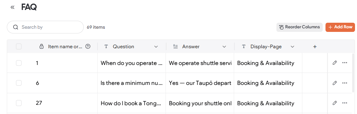
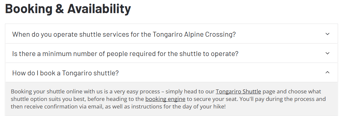
e.g.: Questions or Titles for an FAQs Collection using an Advanced Accordion widget, top of page Introductions using a Text Block widget.
-
Rich Text (
Text that supports formatting e.g.: Hyperlinking, adding bullet points or bolding text. ):
):
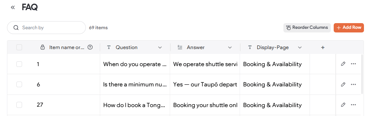
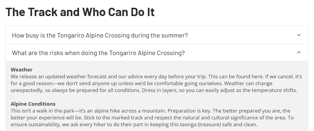
e.g.: Answers for an FAQs Collection, page descriptions, or body copy text.
-
Image (
Select a single image from Media Manager to display within a widget. ):
):
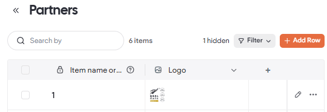
e.g.: Advanced Accordion widget (used as an Itinerary as to display FAQs), to populate a Hero Banner on a Dynamic Page using an Image widget, to populate logos in the Partners Logo Carousel widget (below).
-
Link (
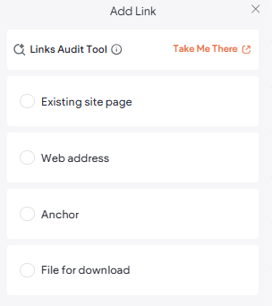
Include a URL to an existing site page on the website, an external web address, an anchor to allow a user to click a link to automatically scroll to a specific section on the same page or another page, or a File for download from the Media Manager. ):
):
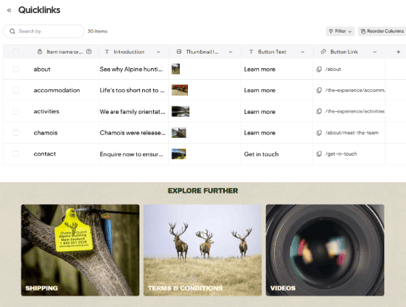
e.g.: Used to add links to YouTube or Vimeo videos within a Collection that display and play video content on a Gallery page, used with a Dynamic Repeater widget used as a 'Quicklink' (below) to link a user to an internal page.
-
Number (
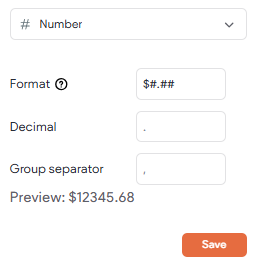
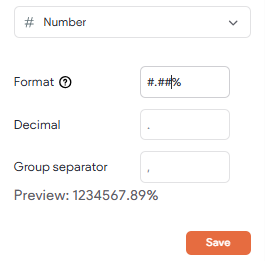
Use this when working with your products pricing to set a consistent decimal placing, or percentages to set the number of decimal places after a whole number. Setting the format in the first field allows you to enter the numbers with the cell automatically updating your entry to include a dollar or percentage sign. ):
):
-
Date & Time (
Use the Date and Time field to display time sensitive content such as classes, events, or in forms to allow a user to enter a custom time and day of arrival for example. ):
):
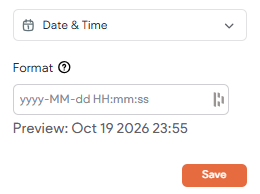
The default setting is YYYY-MM-DD HH:mm:SS, which displays as 2021-10-06 16:12:00. Here are some other options:
- MMMM dd yyyy: October 19 2026
- YYYY-MM-dd: 2026-10-19
- E dd MMMM YY- HH:mm: Mon 19 October 26- 23:55
- MMM dd, YYYY, HH:mm:SS: Oct 19, 2026, 23:55:00
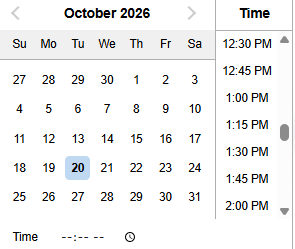
Once the date and time format has been saved within the field, every entry entered within the cell must be selected from a pop-up calendar.
-
Business Hours (
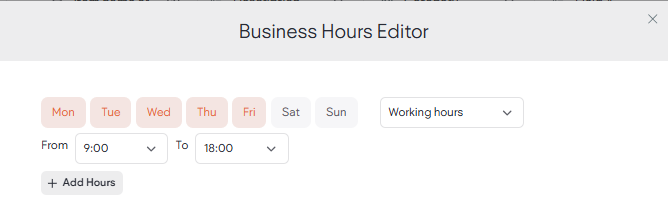
Use this field within a Collection to add your business hours across each day of the week. To add hours after setting this field type, double click into the cell and set the working hours across each day of the week. This only applies to days that the business is open. ):
):
-
Email (
Add an email address to display as hyperlinked text that will open a new email when selected, or select an email address from the details entered in the Company Details Collection. ):
): -
Phone (
Add a phone number to display as hyperlinked text that will open a phone app when selected, or select a phone numberfrom the details entered in the Company Details Collection. ):
): -
Social Accounts (
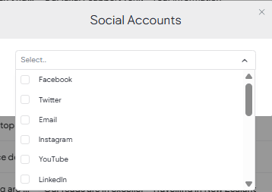
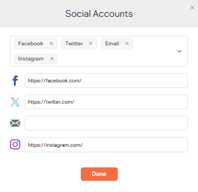
Select a social media icon to display that is set with a link to a social media account. ):
):
-
Multi-select (
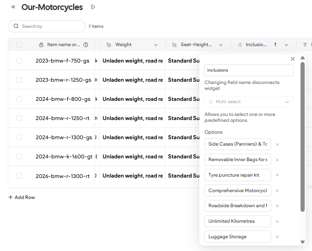
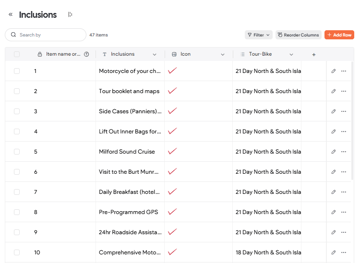
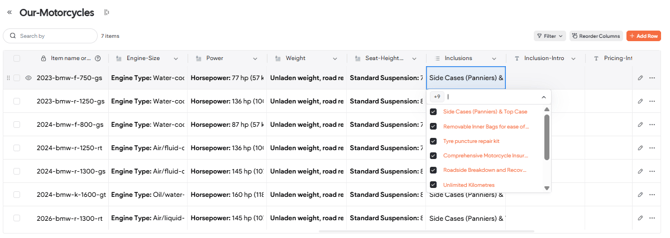
Create a set of options to display in a drop-down within a Collection where multiple options can be selected within a column. Great to use when you have data from Collection that you want to display on a Dynamic Page populated from a separate Collection. For example, Collection A (Our-Motorcycles) contains rows of data that populate Dynamic Pages. Collection B (Inclusion) contains a list of product inclusions. To display product inclusions that are unique to a row, or motorcycle, within Collection A, you will add all product inclusions from Collection B to the Multi-select field within Collection A. You are then you are able to tick multiple checkboxes to display only the inclusions that are unique to Collection A. ):
):
-
Single Select (
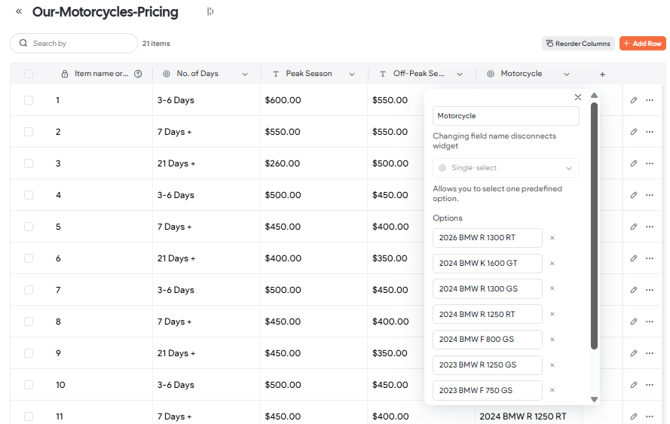
Create a set of options to add to a drop-down within a Collection where a single option can be selected within a column. Great to use when you have various or seasonal pricing across a large number of data that is consistent such as rooms, tours, or products, and each room, tour or product has a Dynamic page with unique pricing. ):
):
-
Icon (
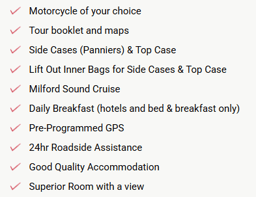
Select a single icon (image) from the Media Manager. Can be used with a Dynamic Repeater widget to display an icon instead of bullet points. ):
):
-
Image Collection (
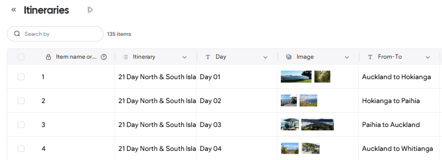
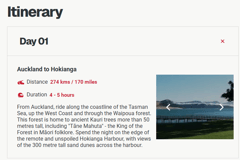
Select up to 20 images from Media Manager within a Collection to display within a Media Slider widget. ):
):
e.g.: Media Slider widget within an Advanced Accordion widget used to display an Itinerary, or used with a Media Slider widget to display a set of static images in a Hero Banner on a Dynamic Page.
-
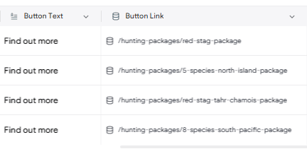
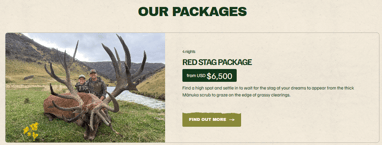
Dynamic Page (
Similar to the Link option for above where a CTA button can be set with a link to a Dynamic Page. This is often used to sit behind a CTA button on a Landing or Parent page to a Dynamic page, or on a 'Quicklink'. ):
):
💡 Our Tips & Things to Remember:
- Changing field name disconnects widget: If you update the name of the field, or the field type, any widgets connected to this Collection will need to be reconnected.