
In this guide we will cover:
What is topline navigation?
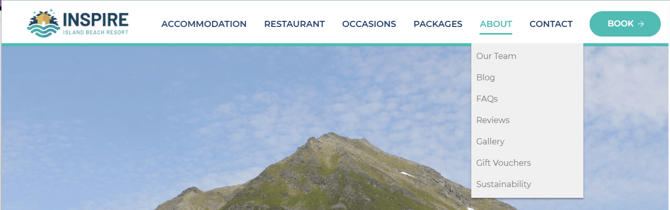
Every website has a navigation menu that is typically found at the top of every page as a horizontal bar, and sometimes as a vertical bar on either side of your window.
With a topline navigation menu, you are making it easy for visitors to your website to make their way around to find information about who you are, what you do, your product availability and pricing.
Having a navigation menu is extremely important when it comes to user experience, and making to easy for people to find what they are looking for in the smallest amount of clicks possible.
How is the topline navigation created
Many websites begin with a sitemap, which maps out how the Parent and Child Pages will be structured, with these pages all stemming from the Home Page.
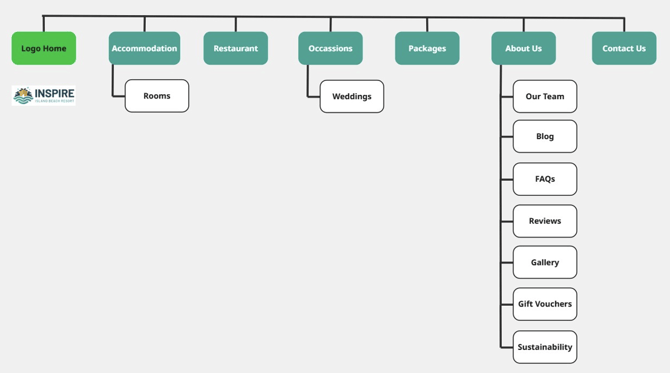
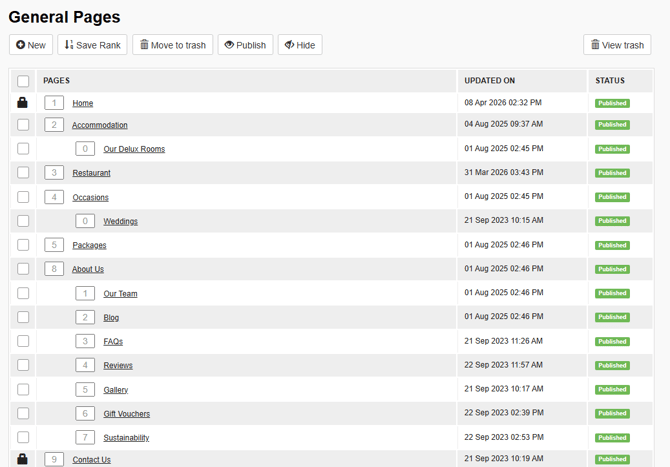
Looking to the Pages Menu of the General section of the CMS, provides an understanding of how URLs are created, and the format that they follow of Grandparent (Home Page), Parent, and Child Pages.
Let's look at the example of the FAQs page.
- Grandparent: inspire.co.nz/ (Home)
- Parent: inspire.co.nz/about-us/ (About Us Landing Page)
- Child: inspire.co.nz/about-us/FAQs (frequently Asked Questions Landing Page)
Create a new topline navigation menu option: Parent Page

Looking to the Pages Menu of the General section of the CMS, provides an overview of all Pages, and the relationship that they share with the Home Page.
The Home Page is the main page that all other pages stem from. You'll see that there is a lock icon next to the Home Page which means that this page cannot be deleted, but the page content can be edited. As it acts as the Master or grandparent of all pages.
A Parent Page means that this page has been set as an option to display in the topline navigation.
You will set this relationship when you create a new General Page.
-
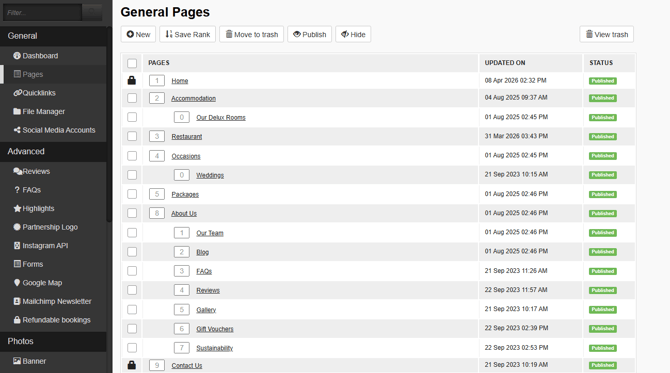
Login to the CMS using your Username and Password, the navigate to the General section of the CMS, then select Pages.
-
You'll be presented with a list of all of the pages that have been created within the CMS. You can open an existing page to edit, or create a new page. In this example, let's start with creating a new page and set this as an option to display in the topline navigation menu (Parent Page).
- Select + New at the top of the page, and complete the Heading and Introduction fields within the Content tab. In this example, let's create a new page for Location to tell people more about things to see and do in the region. We want this to appear in the topline navigation in between Accommodation and Restaurant.
- Select the Settings tab and complete all fields until you reach the Parent of this page drop-down. Select the arrow and you will see a drop-down list of all General Pages that exist within the CMS.
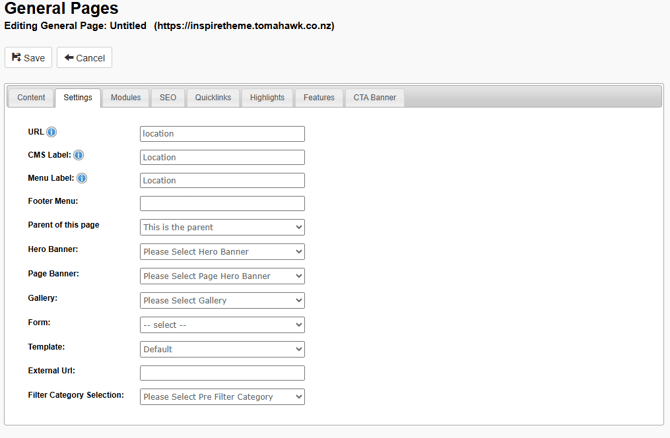 Working with our Location example, select This is the parent as the Parent of this page. Selecting this option means that your page will become a Parent. It will appear in the topline navigation as https://www.inspire.co.nz/location/
 - Menu Label: Adding text to this field sets the name of this option to appear in the topline navigation. Leaving it blank means that it will not appear in the topline navigation options.
- Complete the remaining fields across the tabs, and when you are ready to publish your changes, select Save at the top of the page, where you will be taken back to the pages menu.
- Scroll down to the bottom of the Pages Manu, and you will see your Page with a status of

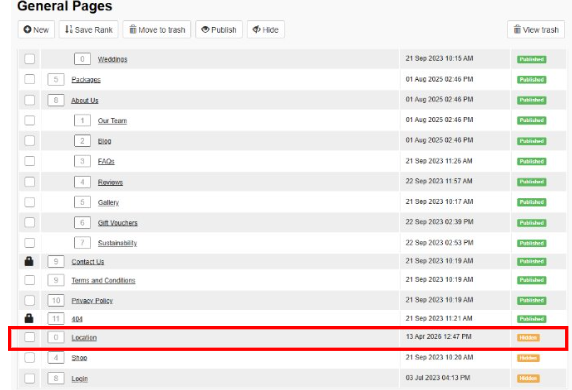
- Tick the checkbox for the page and then select Publish at the top of the page to publish your Parent Page. And the status will update to

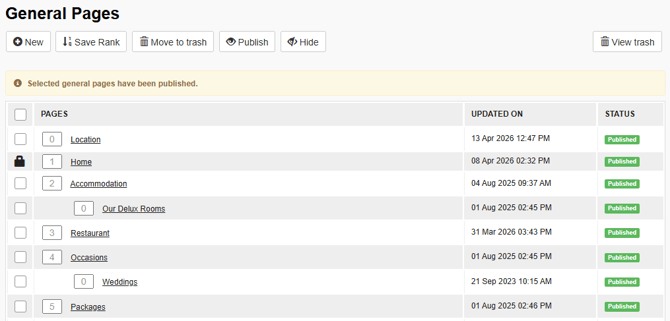
- The final step is to set the order of where you would like the page to display within the topline navigation, so we need to set the Rank. Our newly created Location page will not appear in the topline navigation until you have set a rank, or the order in which this will display within the topline navigation. In the example above you will see that Accommodation has a rank of 2, and Restaurant has a rank of 3. We want Location to appear in the topline navigation in between Accommodation and Restaurant, so we will set a new order as Accommodation =2, Location =3, Restaurant =4, Occasions =5, Packages =6, etc., then select Save Rank at the top of the page to save your changes.
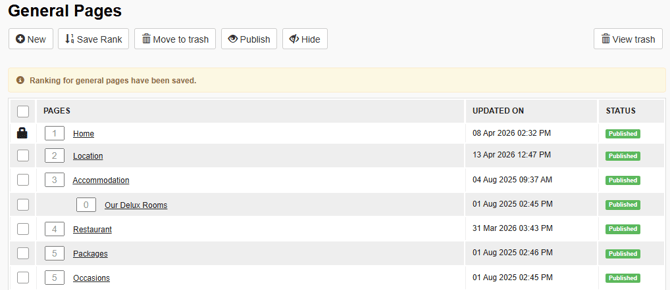
- The Location page should now be displaying in the topline navigation:

Create a new topline navigation menu option: Child Page
You'll notice that when you hover over the headings in the topline navigation on the front end, that a drop-down menu displays with more pages to choose from. These are Child Pages.
You will see within the CMS that a Child Page is set as an indent or step underneath a Parent Page. For example the seven Child Pages you will see nested underneath ABOUT.
You can set this relationship when you create a new General Page, or update any Parent or Child Page following the steps below.
-
Login to the CMS using your Username and Password, the navigate to the General section of the CMS, then select Pages.
-
You'll be presented with a list of all of the pages that have been created within the CMS. You can open an existing page to edit, or create a new page. In this example, let's start with creating a new page and set this as an option to display in the topline navigation menu, under the Parent Page of Restaurant.
- Select + New at the top of the page, and complete the Heading and Introduction fields within the Content tab. In this example, let's create a new page for Menus to tell people about the food and drink offerings from the restaurant. We want this to appear in the topline navigation as a drop-down option that will display when you hover over the option for Restaurant.
- Select the Settings tab and complete all fields until you reach the Parent of this page drop-down. Select the arrow and you will see a drop-down list of all General Pages that exist within the CMS.
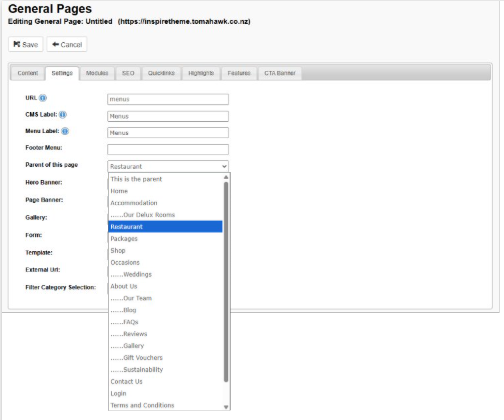
Working with our Menus example, select Restaurant as the Parent of this page. Selecting this option means that Menus page will become a Child of the Restaurant Page. It will appear in the topline navigation as https://www.inspire.co.nz/restaurant/menus - Menu Label: Adding text to this field sets the name of this option to appear in the topline navigation. Leaving it blank means that it will not appear in the topline navigation options.
- Complete the remaining fields across the tabs, and when you are ready to publish your changes, select Save at the top of the page, where you will be taken back to the pages menu.
- You will see your Page with a status of nested underneath the Restaurant Page:
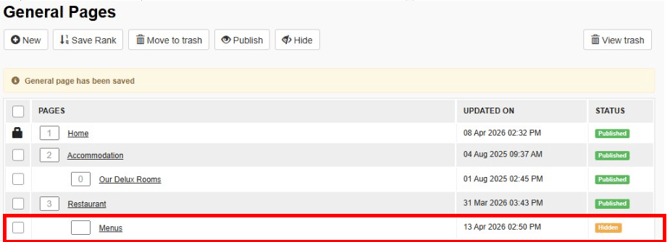
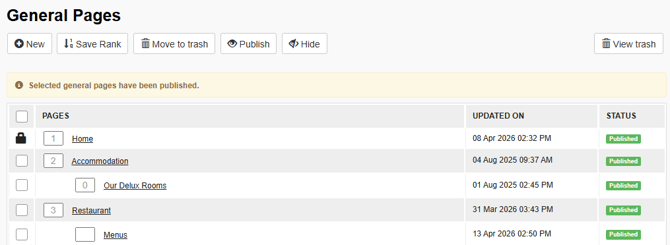
- Tick the checkbox for the page and then select Publish at the top of the page to publish your Child Page. And the status will update to and display on the front end

- If you are adding a single Child Page to display from a Parent Page on the front end. You do not need to set and Save Rank. If you are adding a second or multiple Child Pages to display under as Parent Page, these will display in the order that the are created, without the need for you to set a Rank.
If you did want to change the order of how these Child Pages are displaying, for example, to display in alphabetical order, or in our of the most popular page, then you will need to follow the steps below to set the tank for the order that you would like the Child Pages to display in.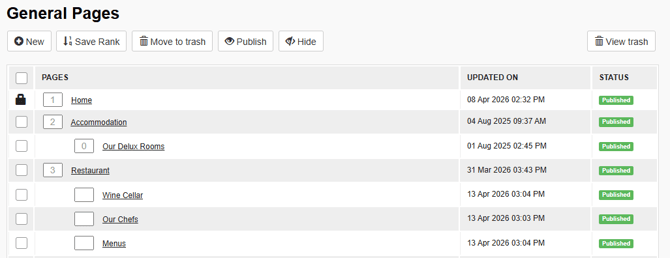

For example, the current order of the Child Pages nested underneath the Restaurant Parent Page is Wine Cellar =1, Our Chef =2, and Menus =3. To update the order of these to display in alphabetical order, you will set the rank as Menus =1, Our Chef =2, and Wine Cellar =3, then select Save Rank at the top of the page to save your changes.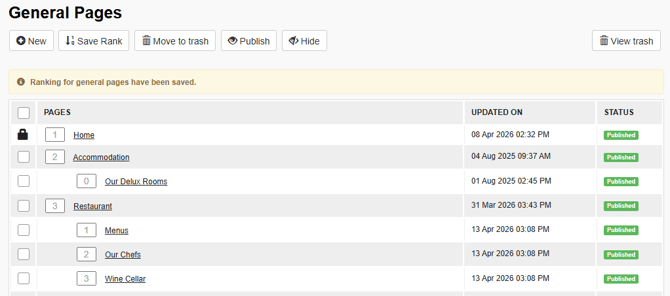

Moving a Child Page to a new Parent
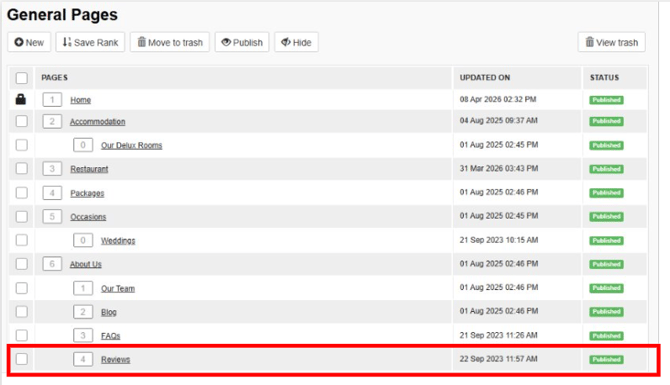
Let's work with the example of the Child Page for Reviews which has the Parent Page of About, and move the Child Page to sit underneath a new Parent Page of Accommodation.
- Navigate to the General section of the CMS, then select Pages. Then click on the Reviews Page to open and edit.
- Select the Settings tab and click the arrow next to the Parent of this page drop-down, where you will see a drop-down list of all General Pages that exist within the CMS.
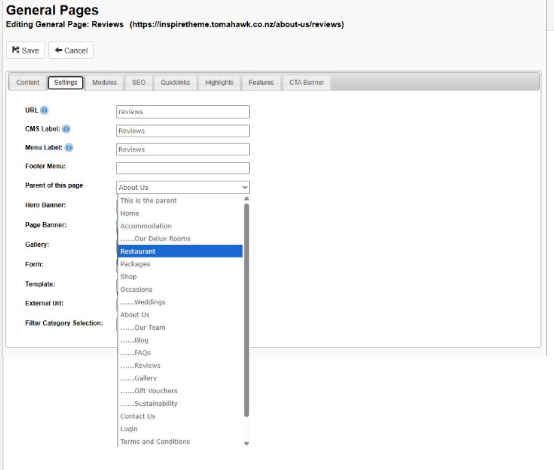
- You will see that the Parent of the Page is currently set to About. To move the Reviews Page to a new Parent, select the option for Restaurant.
- Select Save at the top of the page, where you will be taken back to the pages menu, where you will see that the changes have been made within the CMS. As the Reviews page is already published, these changes will now be live on the front end.
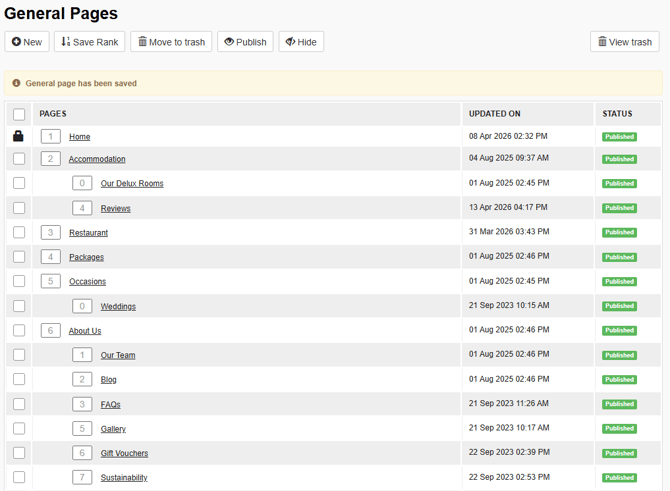
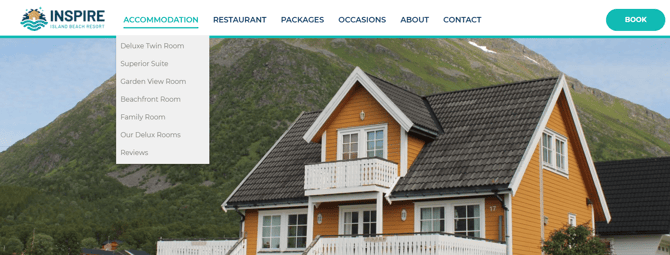
- If this move is a permanent change, you will need to create a redirect as the path or URL to the Reviews page has changed:
-
From: inspire.co.nz/about-us/reviews
-
To: inspire.co.nz/accommodation/reviews
As the URL to the original Reviews Child Page has changed, it will now display a 404 error as the page is not able to be found at this location. You will need to create a redirect from the original location to the new location.
Redirects are important to support the health of the platform's Search Engine Optimisation (SEO), and running regular site audits is a great way to pick up any pages that may be producing a 4xx error meaning that a webpage cannot be accessed.
You can read more about redirect in our Creating a 301 Redirect.
💡 Things to Remember:
-
Menu Label: Adding text to this field sets the name of this option to appear in the topline navigation. Leaving it blank means that it will not appear in the topline navigation options.
- Save Rank: Your page will not appear in the topline navigation until you have set a rank, or the order in which this will display within the topline navigation, even after the page has been published. You will need to set a new order for the topline navigation to sit within the existing order of the topline navigation and then select Save Rank at the top of the page to save your changes. The Home Page will always have the rank of #1.
- Limit the number of options within the topline navigation: Best Practice is to limit the number of options to six.