

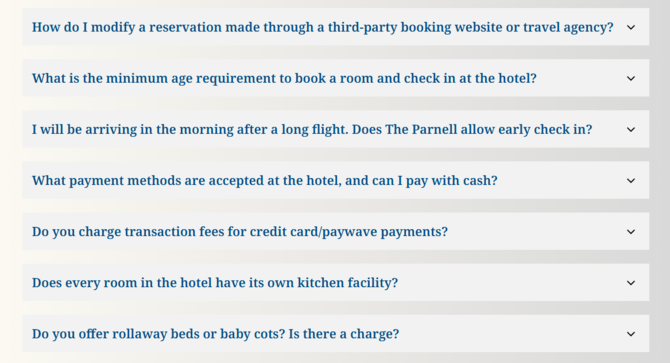
In this guide we will cover:
- How to create a new Collection
- What widget to use to display the Collection
- How to set the Accordion widget to display on a page
- How to connect the widget to the Collection
- How to populate the Accordion widget without a Collection
- Things to remember
How to create a new Collection
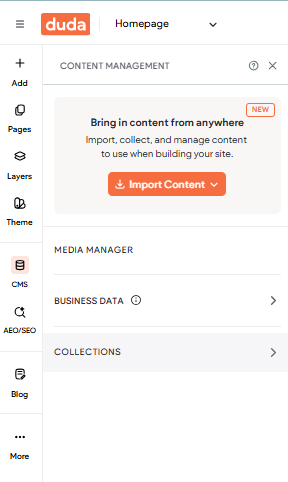
1. Head to the Collections area of the CMS: The first step to populate the Accordion widget with data is to create a Collection. Let's head to the CMS section of Duda, then select the option for Collections.

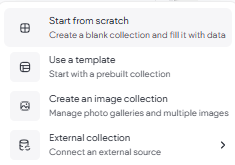
2. Create a new Collection: At the very bottom of the left-hand task pane for Collections, you'll see an orange button for New Collection. Select this to create a new Collection, then select the option to Start from scratch as we are going to build a fresh Collection.
3. Name your Collection: You will need to first create a name for your Collection. When naming a Collection it is recommended to set the name with no spaces, using a hyphen such as Frequently-Asked-Questions or FAQs.
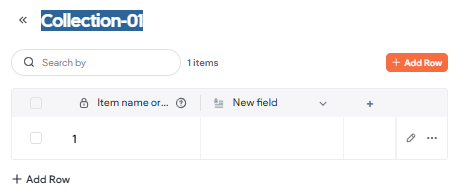
4. The first column can't be renamed: You will notice that the title row in the first column has a lock symbol, meaning that you will not be able to rename this title row or change the type of field. This column in primarily used for content that is linked to a Dynamic Page. As FAQs are generally added to a Static Page we can leave this column alone and you will notice that it will then default to a count and this column will not be visible as a field to connect to when we set the widget on a page.
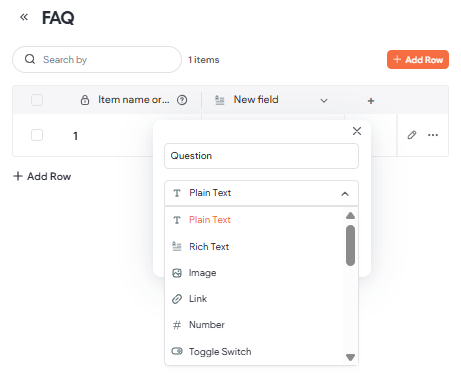
5. Set your column title and field type for Questions: Let's now start naming our columns and setting the field type. Double click on New field to display a pop-up where we will set the title of this column and the field type. In the second column we will set the title on this as Question. In the drop-down field of options for field type, we are going to select the Plain Text field as we will only be adding a brief amount of text. Once both fields have been filled in, you can now select Save to save your changes.
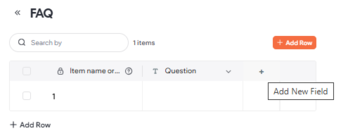
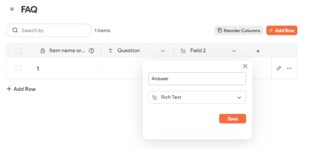
6. Select your column title and filed type for Answers: Select the + on the next column to create a new field for the answers to your frequently asked questions. You will need to set the title of this column in the pop-up as Answer, and this field needs to be set as a Rich Text as you may wish to format this text with a link to another page, bullet points, or to bold the text.
7. Complete each row: You can now double click into each row and type or paste in your question and answer content.
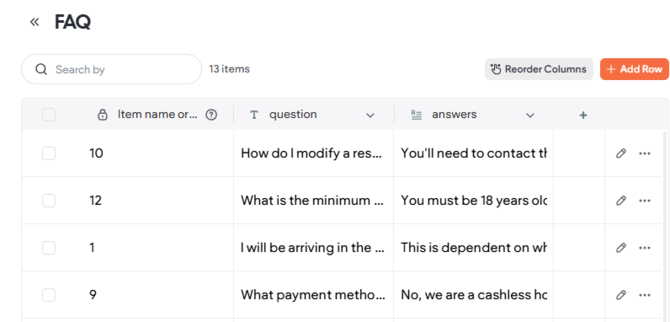
We can now connect this Collection to a widget to display the content on a page. Let's head to the Pages menu.
What widget to use to display the Collection
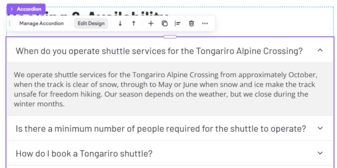
Within the widget library the Accordion widget allows you to use the text from the Question column from the FAQs Collection as the title or question of an expandable row. When the row is selected it will expand to reval the answer.
How to set the Accordion widget to display on a page
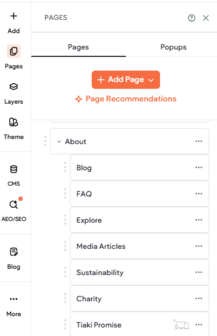 1. Select your page: Head to the pages menu and navigate to the page that you want to add the Accordion widget to display your set of FAQs.
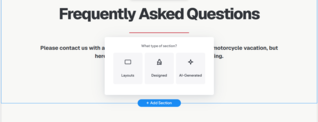
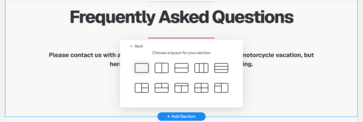
2. Choose where on the page to display the widget: When you know where on the page you would like to add your FAQs to display, hover over the section above until the blue + Add Section button displays, then select this. You will now see a pop-up with options to set the Section. Select Layouts.
3. Choose the single Column: The pop-up will now suggest options for you to set a Column, select the first option for a single Column.
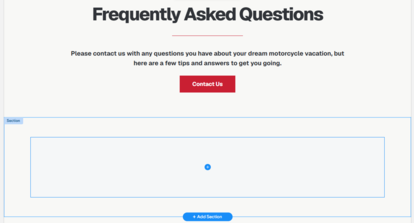
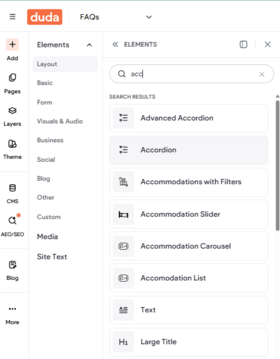
4. Select the Accordion widget from the widget library: You will now see that a Section with a single Column has been added to the page. Select the blue + icon within the Column to open the widget library. You can scroll through the menu or type in text to search for the widget. Once you have found the Accordion widget select this to add to the Column.
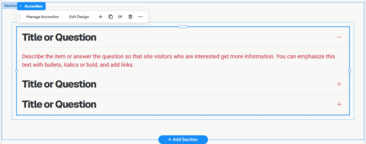
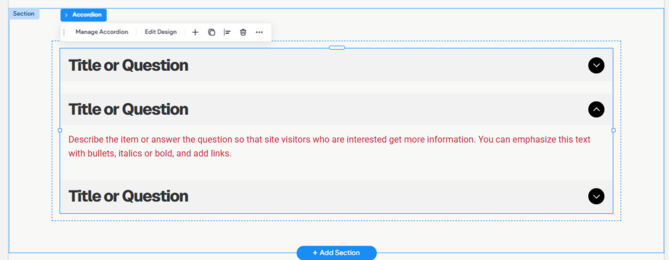
5. Widget has been added to the page: You will now see the Accordion widget has been added to the Column, displaying a Title or Question field with an icon to expand the section to reveal the answer. We can now connect the widget to the FAQs Collection.
How to connect the widget to the Collection
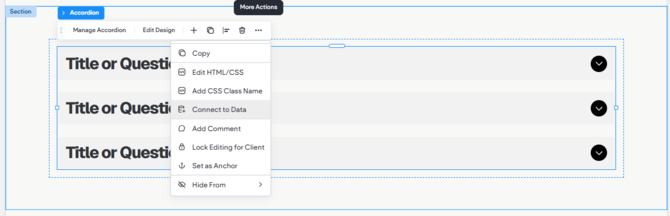
1. Connect the widget to data: Click the widget to display the dialogue box, you will see a blue tab to let you know what element you have selected as it will display the name of either the Section, Column, or Widget. When the dialogue box is blue, this means that this element is not connected to data from a Collection. Select the widget so that the name of the widget appears in the blue tab of the dialogue box, then select the three dots to display a drop-down menu. Now select Connect to Data.
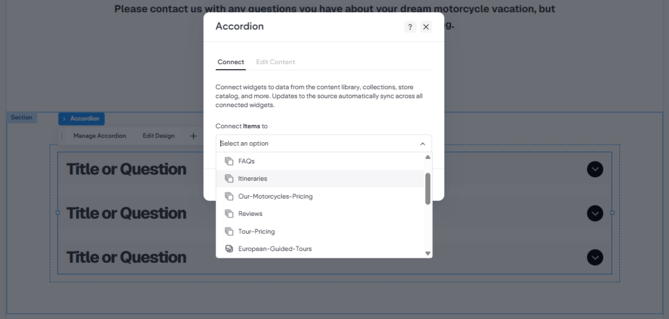
2. Set the Collection: You will now see a pop-up box where you will select the Collection from the CMS that you want to connect the widget to. Select the drop-down to display a list of all Collections available, and scroll through the list to locate the FAQs Collection. Select this, then select Connect.
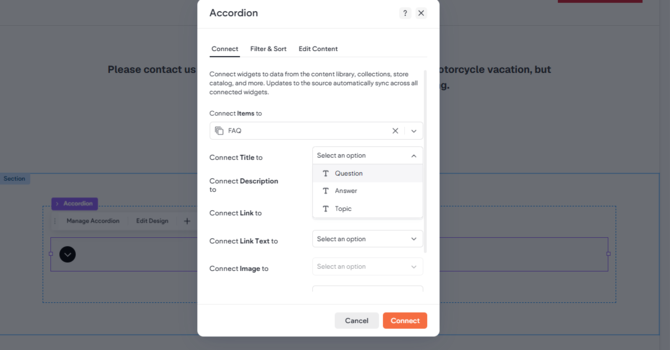
3. Connect your Collection Columns to the widgets fields: You will now see prompts in the pop-up to connect the widget fields to the Columns within your selected Collection. In this example we want the data in the Question Column from the Collection to populate the Title field on the widget, and the Answer Column from the Collection to populate the Description field of the widget. You should see the widget being populated with data behind the pop-up.
With these two fields now set, select Connect to save your changes. You will see that the dialogue box has now changed from blue to purple to show that it has ben connected to a Collection.
4. The widget is connect to the Collection: You will now see the Accordion widget displaying your set of questions, with the answers showing when the title is expanded.
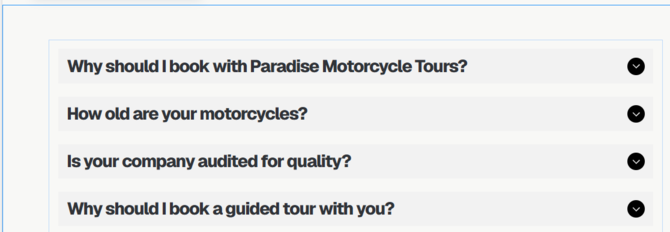
You can now republish the site to display your changes on the front end.
How to populate the Accordion widget without a Collection
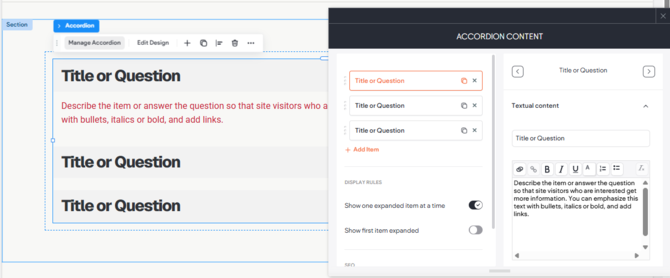
For a small number of questions and answers that may not be repeated across pages on the website, you are able to populate the Accordion widget manually, without creating a Collection. Follow the steps above within What widget to use to display the Collection, then double click the widget to display the Accordion Content pop-up where you will manually populate each row with your questions and answers.
💡Our Tips & Things to Remember
- All changes you make within the Editor will automatically save: These will not publish and display on the front end until you republish the site.
- The first column in your Collection can't be renamed: You will notice that the first column has a lock symbol, meaning that you will not be able to rename this title row or change the type of field. This column in primarily used for content that is linked to a Dynamic Page. As FAQs are generally added to a Static Page we can leave this column alone and you will notice that it will then default to a count and this column will not be visible as a field to connect to when we set the widget on a page.
- Dialogue Box Colour: If the dialogue box is blue, the widget is not connect to data within a Collection. If the dialogue box is pruple, this means that the widget has been connected to A collection with populate this with content.